In horror streams viewers come for your reactions, so the facecam is the star: bigger than usual, well lit, and never covered by alerts. Dark scenes are also the hardest thing to encode, so settings matter.
Where to stream it from
Platforms: Every platform.
OBS settings
| Platform | Resolution and frame rate | Bitrate |
|---|---|---|
| Twitch (standard) | 1080p60, or 900p/936p60 for fast games | 6,000 kbps |
| Twitch, Enhanced Broadcasting | Up to 1440p (Affiliates and Partners) | Set automatically |
| YouTube | 1440p60 or 4K if your upload allows | 9,000 to 18,000 kbps at 1440p |
| Kick | 1080p60 | 6,000 to 8,000 kbps |
Your upload speed and GPU decide the rest: the stream settings finder works it out, and OBS settings by resolution lists the exact boxes to fill in.
Overlay layout: don't cover the game
Most horror games have little UI. Make the webcam large in a bottom corner and keep alerts small and away from it.
A matching overlay look
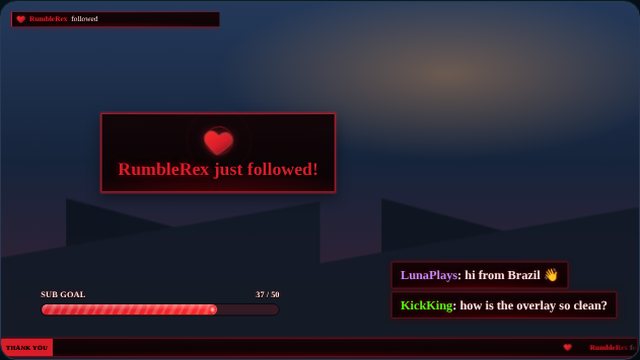
The Blood Moon theme in the Overlay Suite restyles your alerts, chat, goal bar and labels in one click, and the starting soon and BRB screens have a matching HD animated scene. Both are our own designs, drawn as vectors so they stay sharp at 1080p, 1440p and 4K.
Make dark scenes look good
- Dark gradients turn into blocky bands at low bitrates. Use the highest bitrate your platform allows and a slower encoder preset if your GPU has room.
- Don't raise in-game brightness so far that the atmosphere is gone; raise it just enough that shadows don't crush to black on stream.
- A reactive webcam frame pulses when you yell, and the hype detector reacts to chat's "RUN" spam.
Why horror works on stream
Horror is popular because the audience shares the reactions. Viewers watch for your reactions as much as for the game, so a visible face and a clear voice add a lot. Pick games with a good pace of scares and room to talk.
Be honest about your reactions. Genuine ones work better than exaggerated ones.
Sound and atmosphere
Sound is the heart of horror, so get the mix right. Keep game sound loud enough to build tension, but never so loud that sudden peaks hurt your viewers' ears. A limiter on your microphone and on the game prevents painful spikes.
Dim light on your face looks moody, but keep enough light for the camera to show your reaction.
Content warnings and safety
Say in the title when a game has intense scenes, and use the platform's content labels. Keep younger viewers in mind, and set a chat rule against pranks that scare people in real life. Take breaks, since long horror sessions are draining.
Check platform rules about graphic content.
What your upload needs to be
Streaming only works if your upload can carry the bitrate with some room to spare. The table shows the upload speed needed for common settings, adding 30 percent as a safety margin, and the data a stream uses in an hour.
| Platform | Resolution | Bitrate | Upload needed | Data per hour |
|---|---|---|---|---|
| Twitch standard | 1080p60 | 6,000 kbps | 7.8 Mbps | 2.7 GB |
| Twitch fast game | 900p60 | 6,000 kbps | 7.8 Mbps | 2.7 GB |
| YouTube 1440p | 1440p60 | 12,000 kbps | 15.6 Mbps | 5.4 GB |
| Kick | 1080p60 | 7,000 kbps | 9.1 Mbps | 3.1 GB |
If your upload is lower than the figure in the table, choose a lower row. A steady 720p stream looks better to viewers than a 1080p stream that keeps dropping frames.
Other game guides
The guides for the other games cover where to stream each one from and how to lay out your overlay.
| Game | Platforms | Guide |
|---|---|---|
| GTA 6 | PS5, Xbox Series X|S (no PC version announced) | Guide |
| Minecraft | PC (Java and Bedrock), consoles, mobile | Guide |
| League of Legends | PC (Windows and Mac) | Guide |
| GTA V and GTA RP | PC, PS5, Xbox Series X|S (and last-gen consoles). RP servers are PC-only | Guide |
| Counter-Strike 2 | PC | Guide |
| Valorant | PC, PS5, Xbox Series X|S | Guide |
| World of Warcraft | PC and Mac | Guide |
| Fortnite | PC, PS5, PS4, Xbox, Nintendo Switch and Switch 2, mobile | Guide |
| Call of Duty: Modern Warfare 4 | PC, PS5, Xbox Series X|S, Nintendo Switch 2 | Guide |
Titles, tags and thumbnails
A title should say what you are doing and why a viewer might care, in plain words. Include the game, the activity and any hook, such as a challenge or a goal. Tags help people find you, so add the ones that describe your language, your style and your content.
Keep the thumbnail simple if your platform uses one: a clear face, a short phrase and one bright color work better than a busy collage. Use the same style each time so that regular viewers recognize you in a list.
Balancing game sound, voice and music
Set the game quieter than your voice, so that viewers hear you clearly over gunfire or music. A common starting point is a voice that peaks in the upper green of the OBS meter and a game about ten decibels below that. Check the mix by listening to a recording with headphones, not only on the stream preview.
If you play music, use only music that you have the rights to, since copyrighted tracks can mute your replays or lead to strikes.
Before you go live
- Check the title and the game's category on your platform.
- Test your microphone and the game sound with a one-minute recording.
- Make sure your overlay does not cover the game's own interface.
- Set your stream delay if the game needs one.
- Close programs that use your upload or processor.
- Tell chat what you plan to play and for how long.
A routine like this takes five minutes and prevents the most common problems at the start of a stream.
Growing a channel around one game
Streaming one game gives you a clear identity, and viewers who search for that game can find you. The downside is that the game's popularity affects your audience. Keep a second game or a talk format in reserve for when interest in the first drops.
Track which titles, times and formats get the most viewers. Small changes, such as the first words of a title or the start time, can have a visible effect over a few weeks.
Gear
USB microphones, 1080p webcams, key lights, a Stream Deck. Amazon links are affiliate links (disclosure).
Sources: GamesBeat: Twitch State of Gaming 2026, horror growth. Checked November 13, 2026.